

How to Make Your Own eBay Daily Deals & Weekly Deals
This is a precursor to the full article on how to leverage eBay shop tags which I may finally complete for tomorrow (ok, may be Monday). However this is the most immediate application for your eBay shop and can be implemented in minutes. Plus I’m including code for you to copy/paste with! 73MAR2VX5JRS
What are eBay Shop Tags?
Before we start, you need to quickly learn that there are special tags, or keywords that can be used in the eBay shops. These tags that allow you to dynamically show your listings and other data on your eBay shop. I’ll be covering these fully in an article I’ll be releasing shortly, that describes each of them and includes a practical example of each.
The eBay Shop Tag – eBayStoresItemShowcase
 In a few moments we’re going to be leveraging the eBay shop tag eBayStoresItemShowcase and using the attribute called ITEM to specify an eBay item ID to then bring this through on to our eBay shop.
This tag (or keyword) has several other attributes, I cover these in more depth later in the full article, but for now, rest assured you can have more control than this.
Create a Custom eBay Shop Page
For this to work, we need to create a custom eBay shop page, as long as you have an eBay shop, you can do this as the basic eBay shop has 5 pages included.
- Go to eBay and Sign in
- Go here: http://my.ebay.co.uk/ws/eBayISAPI.dll?MyeBay&CurrentPage=MyeBayManageStore
- On the left click on ‘Custom Pages’ (or go here)
- Now under ‘Active Pages’, hit ‘Create new page’ (its a little hidden, keep looking)
- Now there are a couple of formats, but we want the most control so go for the bottom one called ‘1 text Section/HTML’ along the bottom and hit continue
- Enter a Page Title. I suggest ‘Home’
- You now have a big text section, the HTML for this will follow in a few moments
- You can elect to show or hide the left bar at the bottom, this is a choice I’ll leave for you (leave it shown!!!!).
- On the next page, after pasting the HTML verify its as expected and hit save and publish
Notes: You may have already noticed that some of these templates include featured items, that’s really nice for simple users, I’ll be giving you some HTML in a moment that you can edit to your own liking and have maximum control.
If you would like this for your homepage, there is one extra step to do this, go back to the eBay shop custom pages page here and near the bottom there is a section called ‘ Shop Homepage’ and a drop-down box, you can use this to set the shops homepage. This is how people create custom pages and create some those superb landing pages you see.
Grab 6 Item Numbers
We’re going for the maximum control option, which is specifying the item numbers that are to be shown in our daily and weekly deals section. There are other options, but I’m pretty sure you’re going to be wanting to specify exact items.
We need 6 numbers, 2 are going to be our daily deals, the other four are going to be our weekly deals. So before we can do this, lets go and grab six items. If you do not know what item numbers are you can find these by looking at your listings, using this listing as an example.
I have put an arrow next to the eBay item number.
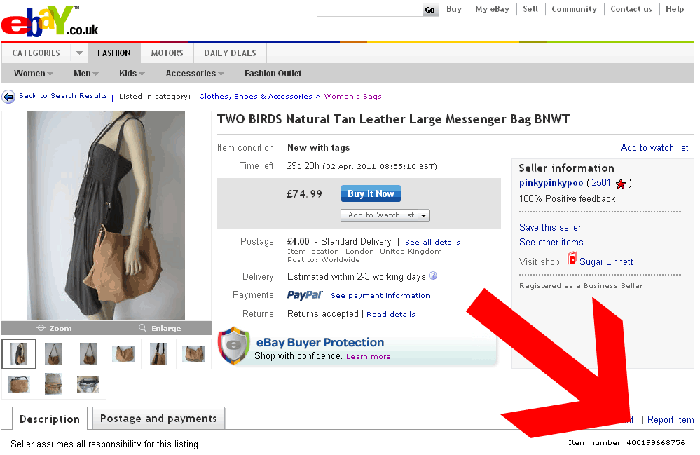
Where you can find the eBay item Number of a Listing
The Keyword
We’re using two keywords, on that has two items specified for the daily deals and one that has four item numbers set for the weekly deals. In this example I’ve also set the attribute BACKFILL to on, so at least if you forget to update the listing or it ends, eBay will back fill for you.
Daily Deals Keyword:
{eBayStoresItemShowcase ITEM=”ItemNumber1,ItemNumber2″ DISPLAY=”1″ BACKFILL=”On”}
Weekly Deals Keyword:
{eBayStoresItemShowcase ITEM=”ItemNumber3,ItemNumber4,ItemNumber5,ItemNumber6″ DISPLAY=”1″ BACKFILL=”On”}
The HTML
Now this is clearly not going to be a one size fits all, but it’ll get you on the right track. It is s a single column format that has titles, descriptions and the eBay shop tags in and will point you in a the right direction.
I’ve added some comment tags to guide you to which sections you can edit and also remember to replace ItemNumber1, ItemNumber2, ItemNumber3, ItemNumber4, ItemNumber5, ItemNumber6 with the eBay item numbers you harvested before.
Code:
| Our Daily Deals |
| Welcome to ebay shop XYZ we have two amaizing deals for you, these are Lorem ipsum dolor sit amet, consectetur adipiscing elit. Aliquam et rutrum lorem. Morbi eget mauris enim, ac interdum lacus. In non interdum est. Nulla facilisi. Donec vel nibh ac purus faucibus volutpat. Praesent nec neque dolor. Aliquam id lectus sit amet augue aliquam accumsan. Morbi lobortis eros lacinia erat facilisis suscipit. Donec eu urna nec elit vestibulum ornare ut ultrices arcu. Donec in nibh ante. |
| {eBayStoresItemShowcase ITEM="ItemNumber1,ItemNumber2" DISPLAY="1" BACKFILL="On"} |
| Our Weekly Deals |
| Take advanatge of our amazing weekly deals, thee only last for one week Lorem ipsum dolor sit amet, consectetur adipiscing elit. Aliquam et rutrum lorem. Morbi eget mauris enim, ac interdum lacus. In non interdum est. Nulla facilisi. Donec vel nibh ac purus faucibus volutpat. Praesent nec neque dolor. Aliquam id lectus sit amet augue aliquam accumsan. Morbi lobortis eros lacinia erat facilisis suscipit. Donec eu urna nec elit vestibulum ornare ut ultrices arcu. Donec in nibh ante. |
| {eBayStoresItemShowcase ITEM="ItemNumber3,ItemNumber4,ItemNumber5,ItemNumber6" DISPLAY="1" BACKFILL="On"} |
Real Life Example
This is the example code live on eBay, as you can see, it only needs the descriptions and you’re ready to roll!
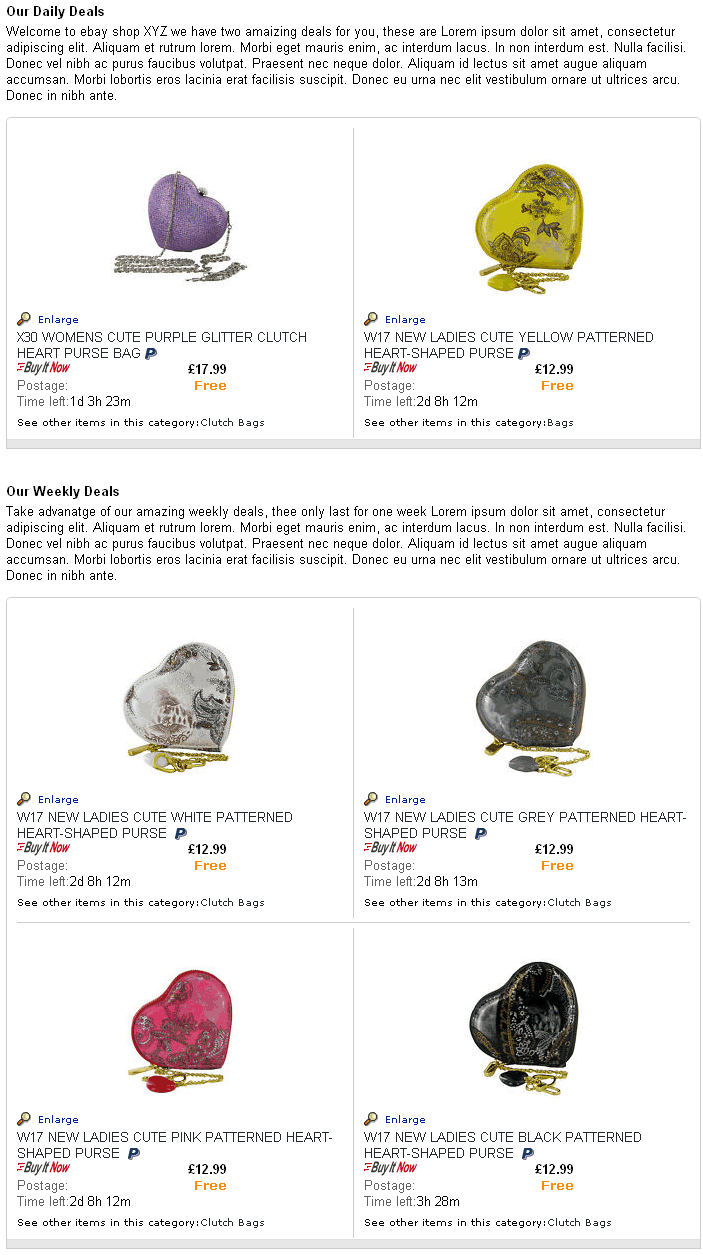
The Example Code Output with Live eBay Items
Easy-Peasy
You’ve now got the keywords, the HTML and the instructions. Easy-Peasy. Enjoy.



Trackbacks & Pingbacks
How to Make Your Own #eBay Daily Deals & Weekly Deals – http://t.co/lEAJE0Wh
How to Make Your Own #eBay #Daily Deals & Weekly #Deals – http://t.co/A9S8LN9W
[…] in an earlier article that you can create your own using the eBay shops tags in the article called How to Make Your Own eBay Daily Deals & Weekly Deals.In this article I cover the ground around daily deals and try and be constructive as possible […]
[…] job when its too late.You might also want to look at the two articles I wrote earlier this year on How to Make Your Own eBay Daily Deals & Weekly Deals and another on How To: Using eBay Shop Keywords to Leverage the Extra eBay Shop Pages, as you can […]
[…] covered this in detail in an earlier article called How to Make Your Own eBay Daily Deals & Weekly Deals check this article out to see a more detailed description.The Example Code Output with Live eBay […]
Leave a Reply
Want to join the discussion?Feel free to contribute!